Mesh Import & Visualization
Import and visualize large meshes from external mesh generation tools.
This tutorial demonstrates how to import and visualize large meshes from external mesh generation tools.
Mesh view of Model.
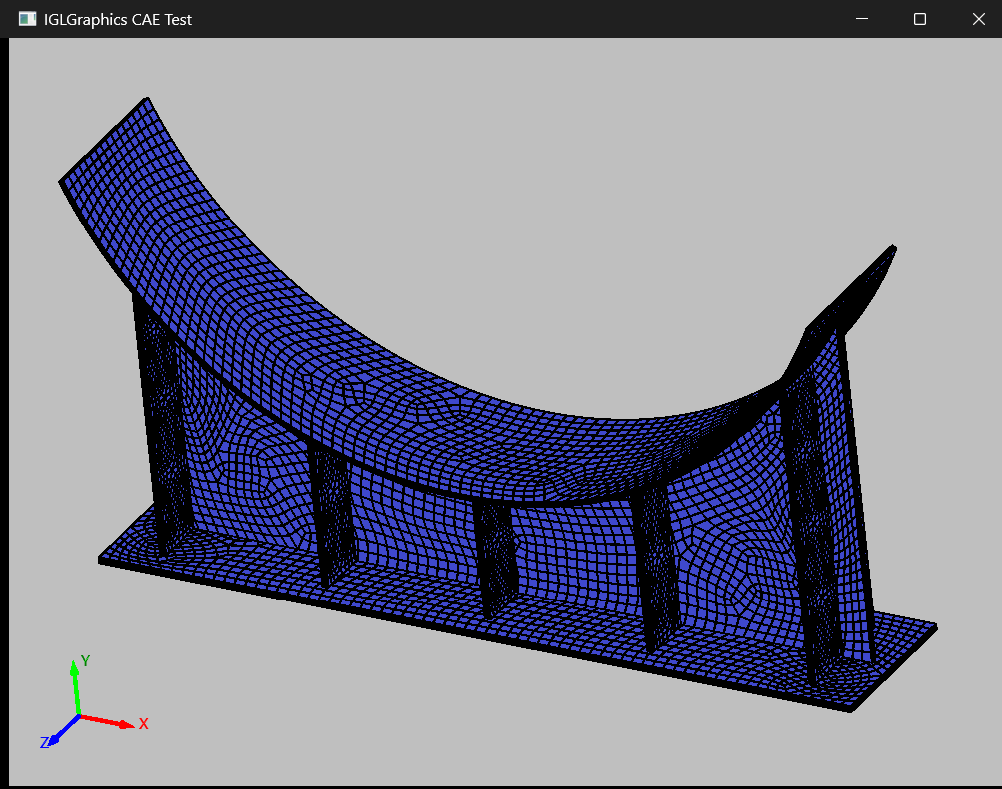
# Import necessary modules

import sys  # Provides access to system-specific parameters and functions
from PySide6.QtWidgets import QApplication, QMainWindow  # Import Qt widgets for GUI application

# Import IGLGraphics modules for display context and viewer
from IGLGraphics.core.IGLDisplayContext import IGLDisplayContext
from IGLGraphics.graphics.IGLViewer import IGLViewer
from IGLGraphics.geometry.IGLImport import IGLImport

# Create the QApplication instance,
# which manages the application's control flow and main settings
app = QApplication(sys.argv)

# Create the main window of the application
win = QMainWindow()

# Set the title of the main window
win.setWindowTitle("IGLGraphics CAE Test")

# Create an instance of IGLViewer, which is a IGLViewer widget for
# displaying models and handling user interactions

view = IGLViewer()

# Create an IGLDisplayContext associated with the viewer, for managing graphics rendering context

thecontext = IGLDisplayContext(view)

#
importer = IGLImport()
filename = r'Saddle.msh'

is_valid, MeshData = importer.ImportMesh(filename)

# Add the mesh data structure to the display context for rendering
if is_valid and MeshData:
    thecontext.AddMesh(MeshData,True)

# Set the central widget of the main window to the IGLViewer
win.setCentralWidget(view)

# Resize the window to 800x600 pixels
win.resize(800, 600)

# Show the main window
win.show()

view.OnZoomFit()  # Adjust the view to fit the entire model in the viewport

# Start the application's event loop and exit when it finishes
sys.exit(app.exec())